
AgileConnect for HubSpot
No, properties are created when the application is installed. A property will be created for each field your company selected from the data dictionary prior to installation.
Agile populates custom properties that were created when the application was installed. The only time that Agile will fill in standard properties is when creating new records through the prospecting tool.
Yes! Automation can be set up to fill in standard properties with the Agile data. For example, many clients want to populate the standard email address with Agile’s email address if theirs is bouncing or invalid.
Yes, Agile properties behave and function just like any other HubSpot property, this means that you can add them to the standard view on a company or contact page.
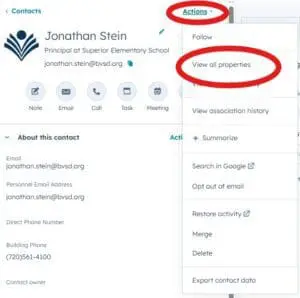
You can reach the Agile data by selecting View all properties under Actions. They will be in the AgileConnect group.Â

No, moving the Agile properties to other HubSpot groups will prevent the data from being updated and cause errors.
Yes, as long as the API name remains the same, the display name can be edited. Do not change the property type or add validation rules.
Note: Never delete or archive an Agile property unless instructed to by an Agile team member. This will result in errors that prevent data from updating and eliminate the ability to prospect records.Â
While the integration does not complete the company hierarchy, you can use the data provided (Agile’s UIDs) to set up automation rules to define the hierarchy.
The integration will not adjust the hierarchy for existing contacts, but it will add prospected contacts to the appropriate company. Automation can be set up using the Agile UIDs to reassign contacts to their appropriate company.
With the latest version of AgileConnect, cards will be created when the integration is installed. See the AgileConnect cards page for more details.Â
To use the AgileConnect cards, you must have an active AgileConnect account with the same email address you use for HubSpot. Contact your account manager if you need to update your email address or if someone on your team needs a new account.Â
For contacts, the Original Source Drill-Down 2 property will provide this information. For companies, use Record Source Detail 1Â instead.
Depending on how long you’ve had AgileConnect, you may see a few values here. If the field contains “Agile”, the integration created the record.
By default, contacts and companies are not automatically imported through AgileConnect.
Use the Prospecting tool to import contacts and companies. For all saved Prospecting lists, there is an option to automatically import the data weekly. Otherwise, lists are only imported when you approve an upload from the prospecting tool.
Anyone with an AgileConnect account can use the dashboard to prospect new records. Your account manager can provide a list of users with access.
In HubSpot, you can adjust the view for contacts and companies to remove the cards or make them visible only on certain views. Go to Settings -> Data Management -> Contacts -> Record Customization -> Customize the right sidebar.
Users without an AgileConnect account will see an error message on the cards and will not be able to prospect.
Yes. When importing prospected records, Agile uses the two-letter state code to populate the state fields. If those fields are restricted to full name picklists in the client’s org, the prospected records will fail.
After the application is installed, the integrations team will schedule recurring jobs to match as many records as possible using our proprietary fuzzy matching process.
Once a week, we’ll match all companies and contacts. Every weeknight, we’ll match newly created or recently updated records.
See our documentation about scheduled jobs for details.
As you add new records to your org (for example, through web forms), the nightly matching functionality will run and append data to the custom Agile Properties.
Once a week, all Agile properties will be updated with the latest and greatest data.Â
If one of your scheduled jobs fails, the integration will retry it 3 times, with an exponentially increasing time offset between attempts.Â
Our team is notified if the job fails after three attempts. We also audit the job history at least once a week.
The typical turnaround time between failure and success is only a few hours, as most failures are transient and succeed on a retry. If a job exhausts its retries, the issue may take longer to resolve.
Reach out to your account manager and the integrations team if you have concerns about your scheduled jobs.
You can accomplish this by using the Get Match card on the contact or company you would like to match. You can also use the Get Match action from the AgileConnect dashboard.Â
This indicates that the two records (or more) matched to the same Agile record. These are typically duplicates.
You can use this information to initiate duplicate cleanup efforts.
Speak with a Consultant   |   866.782.0241 x 108   |   [email protected]
© 2023 Agile Education Marketing, All Rights Reserved
We use cookies to ensure you get the best experience on our website. Learn more.
We’re here ready to answer your questions! Share a little information with us below and one of our Agile experts will be in touch shortly.