
Agile ConnectLink™

USER GUIDE

Importing Accounts

Navigation Menu

Introduction

ConnectLink does not automatically create accounts during bulk updates. For most configurations, the integration will only create new educators if the account exists.

We recommend importing missing institutions every 1-3 months, since we regularly add new records to our database.

There are multiple ways to import missing institutions with ConnectLink. Any records created by the integration will have the Created by ConnectLink box checked.

For all methods listed below, the integration uses the Account ConnectLink Key field to determine if the record is in your organization or not. We recommend a ConnectLink match every 12-18 months to ensure that existing records have a ConnectLink assigned when possible. After your data match, we provide an estimated count of missing accounts, along with a breakdown by record and file type.

Please contact your account manager and the integrations team if you have any questions.

⚠️ Important: If your organization has the district roll-up feature enabled, do not use the Import All Missing Institutions action. For bulk imports, see the Flat File section below. You can use the Search tab to add individual records. 
Import All Missing Institutions

This is the easiest way to ensure all active institutions in your data license are in Salesforce. We recommend using this option, unless you only want to import newly created institutions or a subset of your licensed records.

  1. In Salesforce, use the app launcher to switch to the ConnectLink app.
  2. Navigate to the ConnectLink Setup tab.
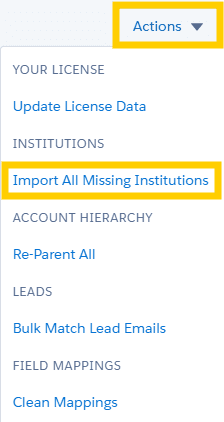
  3. From the Actions menu, select Import All Missing Institutions.
    • It will not provide a count of institutions that will be imported.
    • If you need an estimate, the Institutions tab of the Adoption Metrics dashboard provides counts of active licensed accounts in your organization versus the number in your license. The totals are in the bottom right corner. See our Dashboards documentation for more information. 
  4. You can monitor progress in Apex jobs, and you will receive an email once the import is complete.
    • The job can take a few hours, depending on the number of accounts that are imported. The integration does this in small batches, so performance should not be impacted.
  5. Check the Batch Update Errors tab to make sure errors didn’t prevent accounts from importing.
    • If necessary, troubleshoot and reimport any records that were skipped.
  6. After all institutions have been imported, run a Bulk Update All.
Actions - Import All Missing Institutions

New Institutions Tab

We recommend using this option if you’re only looking for institutions we’ve added to our database recently. This feature allows you to select a date and provides a list of licensed institutions added to our database after that date. You can choose to import institutions one at a time or import them all at once.

  1. In Salesforce, use the app launcher to switch to the ConnectLink app.
  2. Navigate to the New Institutions tab.
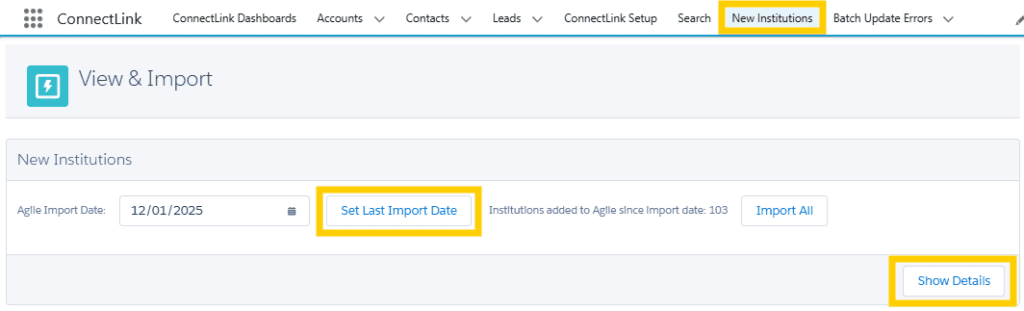
  3. Set the Agile Import date to the last time you imported new institutions and then click Set Last Import Date.
  4. Click the Show Details button to see a list of the institutions added since that date.
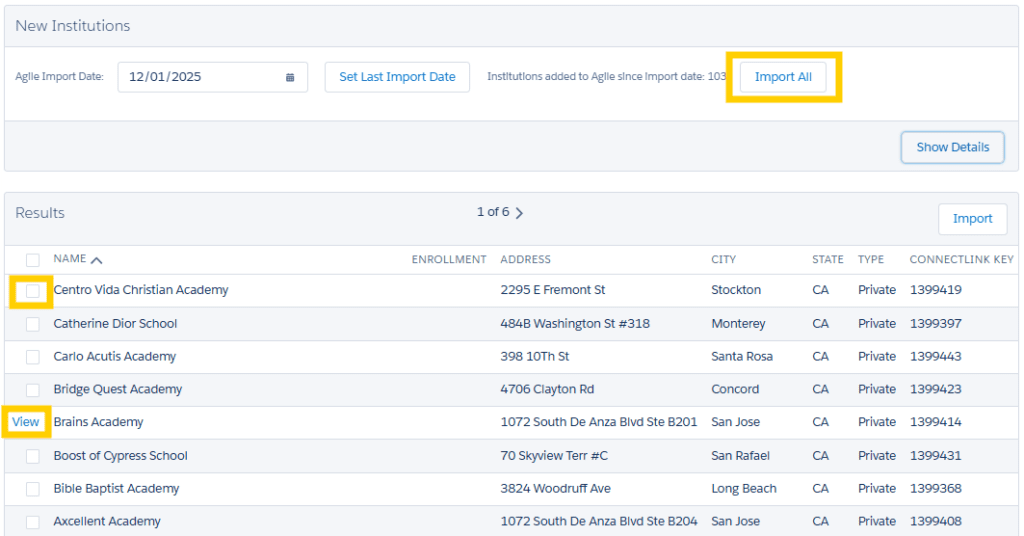
    • If there’s a checkbox next to the institution’s name, the account does not exist in Salesforce.
    • If the ConnectLink Key of the institution already exists in your Salesforce org, a View link displays instead of a checkbox. You can use this to view the existing record. Duplicates will not be created even if they are listed.
  5. Click Import All in the top section to import all institutions that are not already in Salesforce. If you prefer to select individual institutions, use the checkboxes and Import button in the Results section.
  6. You can monitor progress in Apex jobs, and you will receive an email once the import is complete.
  7. Check the Batch Update Errors tab to make sure errors didn’t prevent accounts from importing.
    • If necessary, troubleshoot and reimport any records that were skipped.
  8. After all institutions have been imported, run a Bulk Update All.
Set Last Import Date
Import All, Select Individual Records, or View Existing Records

Search Tab

We recommend using this option if you want to add a specific institution or search in a particular area. This is a good way to prevent duplicate account creation, as it will link you to the existing record in Salesforce if it already exists.

⚠️ Note: Importing a few individual accounts with the Search tool does not satisfy the recommendation to import missing institutions every 1-3 months. Use one of the other methods.
  1. In Salesforce, use the app launcher to switch to the ConnectLink app.
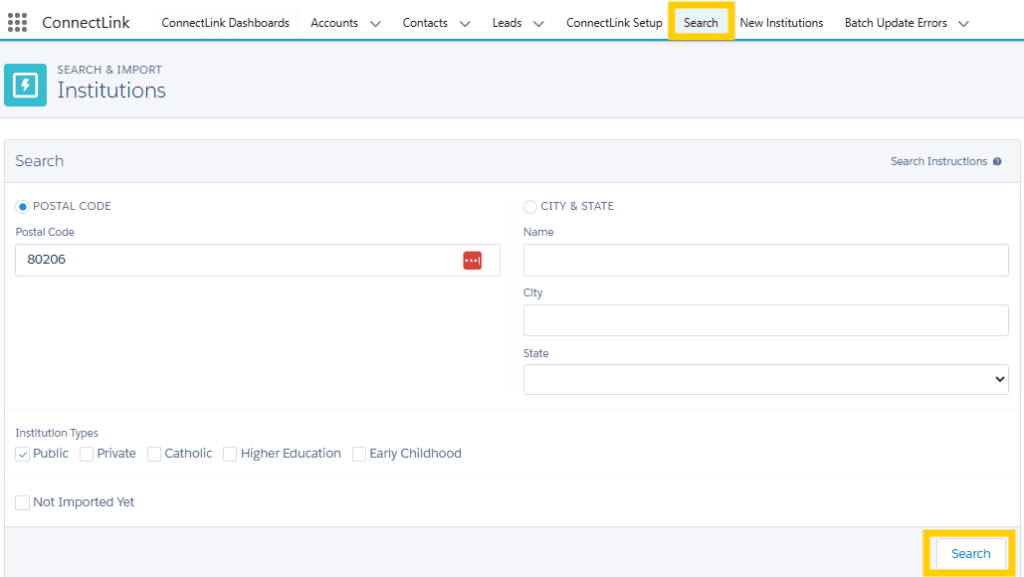
  2. Navigate to the Search tab.
  3. Select the appropriate radio button to search by postal code or city & state. Enter the search parameters, select the institution types you want to look for, and then click the Search button.
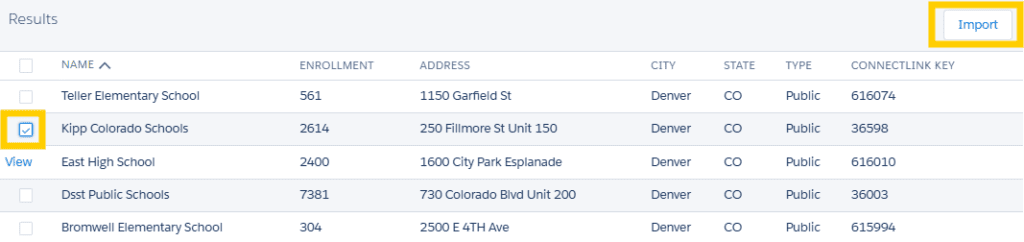
  4. In the results section, use the checkbox to select the institution(s) you’d like to import. Then click the Import button.
    • If there’s a checkbox next to the institution’s name, the account does not exist in Salesforce.
    • If the ConnectLink Key of the institution already exists in your Salesforce org, a View link displays instead of a checkbox. You can use this to view the existing record. Duplicates will not be created even if they are listed.
  5. Institutions are typically created in a couple of minutes, along with related personnel. Resubmit the search, and you should see a link to view the new record(s).
    • If the account is not created after a few minutes, check the Bulk Update Error log. Resolve any errors and try again.
Enter Geographic Data to Search for an Institution
Choose a Record to Import

Flat File

This is the least common method for importing missing institutions and requires the most manual work. We recommend using this option if your team has the district roll-up feature enabled. Otherwise, this option is typically only used if your team intends to review the list manually.

  1. Provide a list of all Account ConnectLink Keys in your Salesforce org to the integrations team and your account manager.
  2. We will use this list to provide a list of active missing institutions. We can add a count of related personnel if desired. This list will be posted on our eDelivery FTP site.
  3. If needed, review the list and remove any institutions you do not want to import.
    • If you remove institutions, keep a list of the institutions you do not want to import and discuss them with the Agile team. We may be able to suppress them from your ConnectLink order, allowing you to use the other features to import records in the future.
  4. Import the new institutions into Salesforce.
    • Important: Map the Inst_UID to the ConnectLink Key field.
    • Your flat file may contain a large number of fields to help you review the list. You may not want to map all of these for the import. Often, clients choose to map the required fields and let the Bulk Update All populate the remaining mapped fields.
    • If errors prevent records from being imported, review and resolve the issues as necessary.
  5. After all institutions have been imported, run a Bulk Update All.

Speak with a Consultant     |     866.782.0241 x 108     |     [email protected]

education expertise matters

Consultation
Request

We use cookies to ensure you get the best experience on our website.  Learn more.

Optimize Your Digital Marketing

Let's Get Started

Optimize Your Digital Marketing

Let's Get Started

education expertise matters

Let's Connect

We’re here ready to answer your questions! Share a little information with us below and one of our Agile experts will be in touch shortly.

Making Data Useful Daily

Let's Get Started

See Agile Integrations in Action

Connect to
Learn More

Plug Into the Education Market

Get Started

education expertise matters

Consultation
Request

education expertise matters

Consultation
Request

education expertise matters

Consultation
Request