
Agile ConnectLink™

USER GUIDE

Version 4.8 Release Notes

Navigation Menu

What's New

Security Enhancements

ConnectLink has been updated to the latest Salesforce security standards and complies with the Platform Sharing Architecture. In this release, two permission sets—ConnectLink Admin and ConnectLink User—are fully functional. For details on implementation, read the ConnectLink Permission Sets FAQ.

New Dashboards and Reports

The ConnectLink Dashboards tab has been significantly upgraded. 

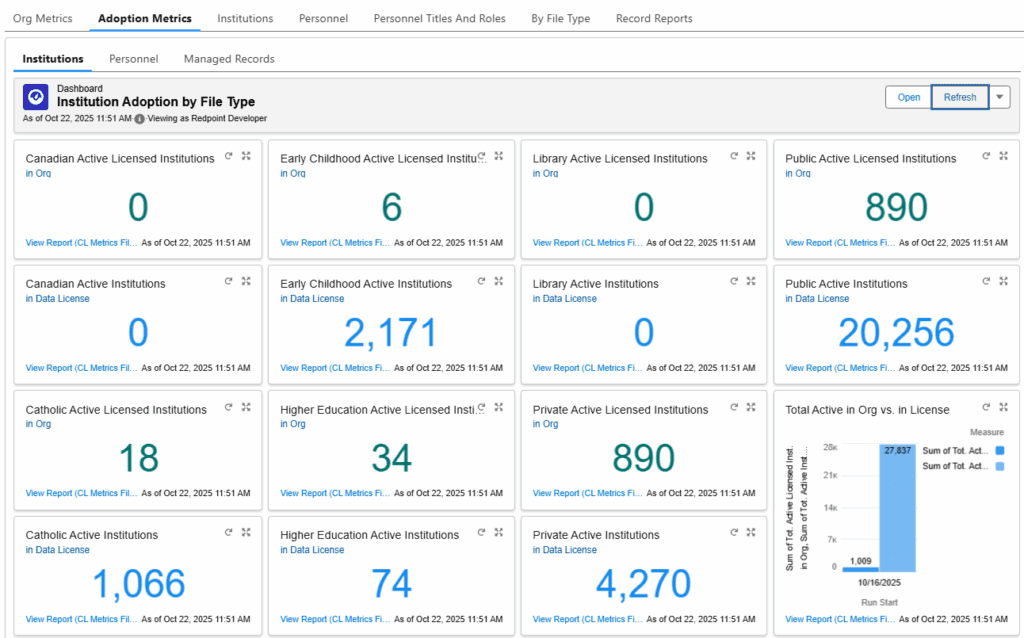
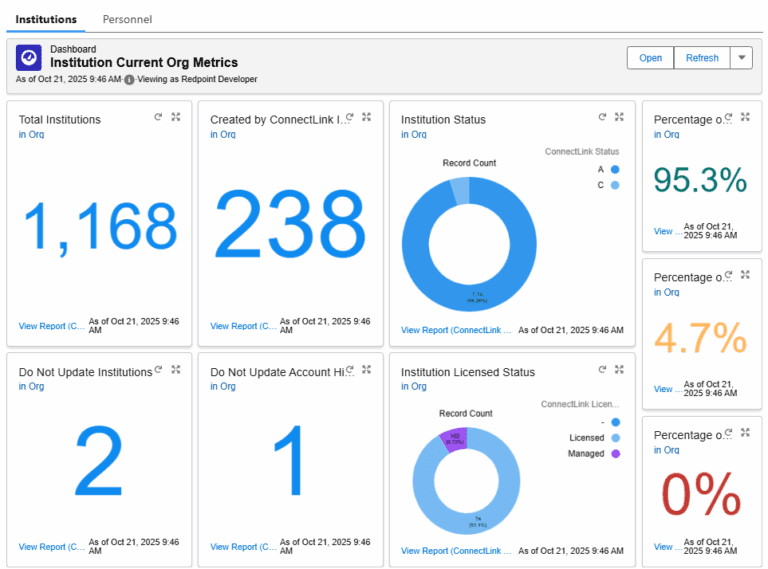
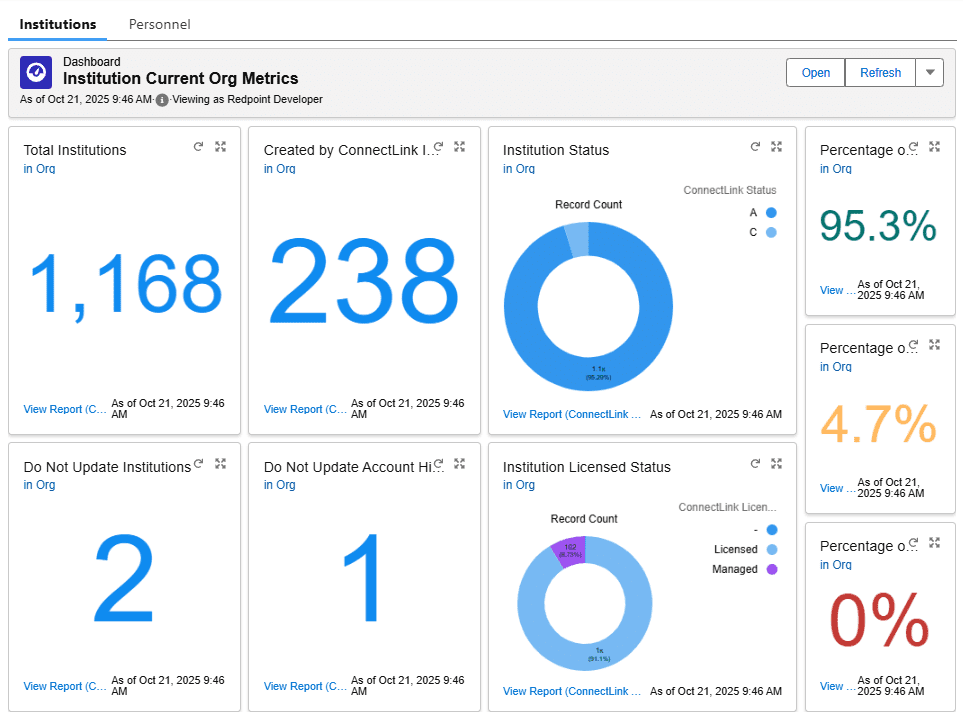
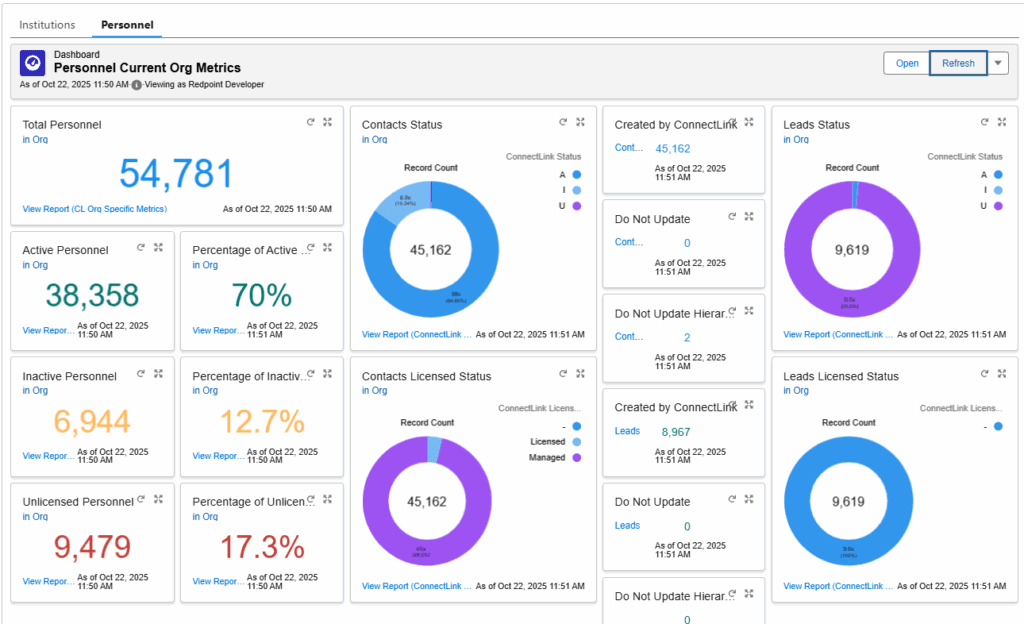
  • Updated Org Metrics Dashboard: These have been divided into Institution and Personnel tabs with new widgets that display more detailed data.
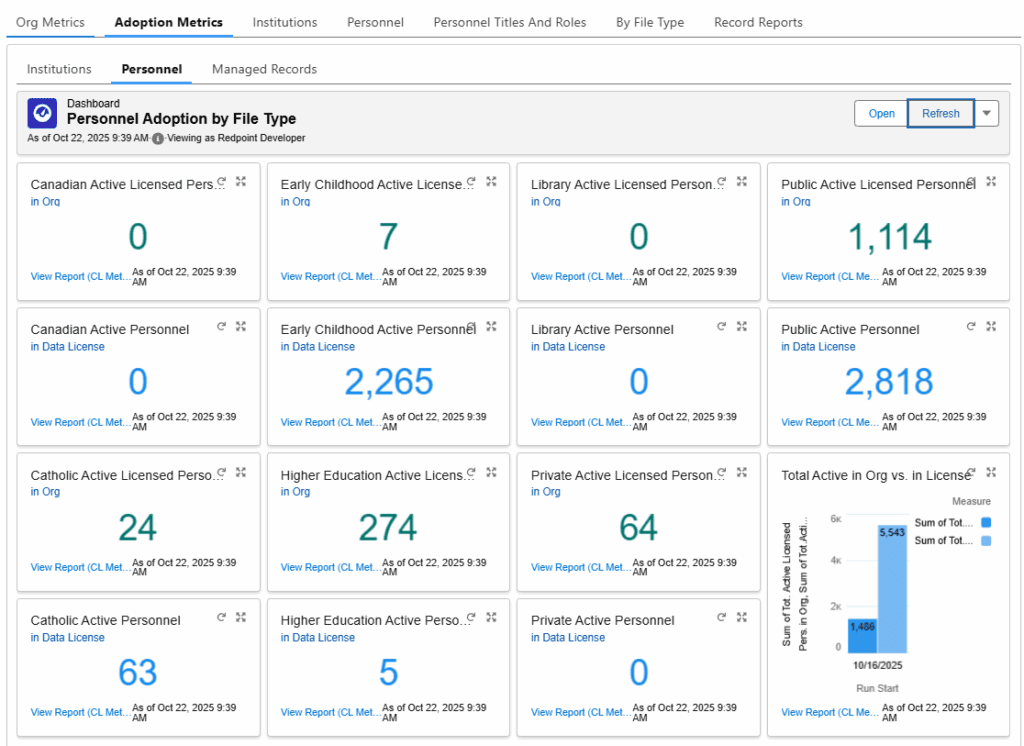
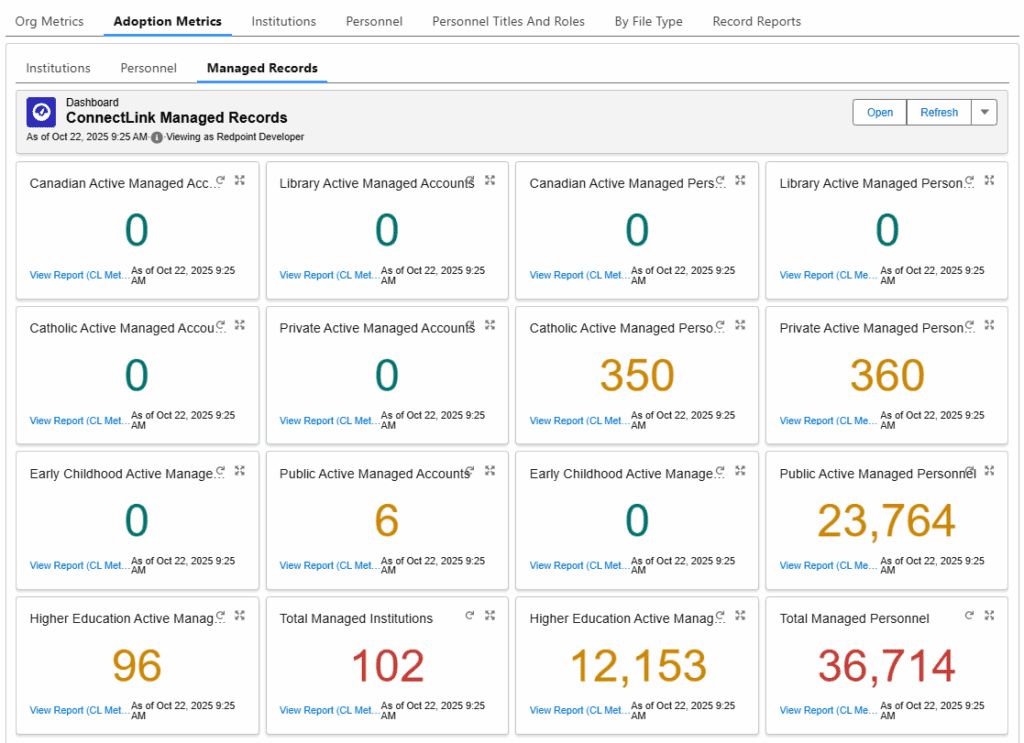
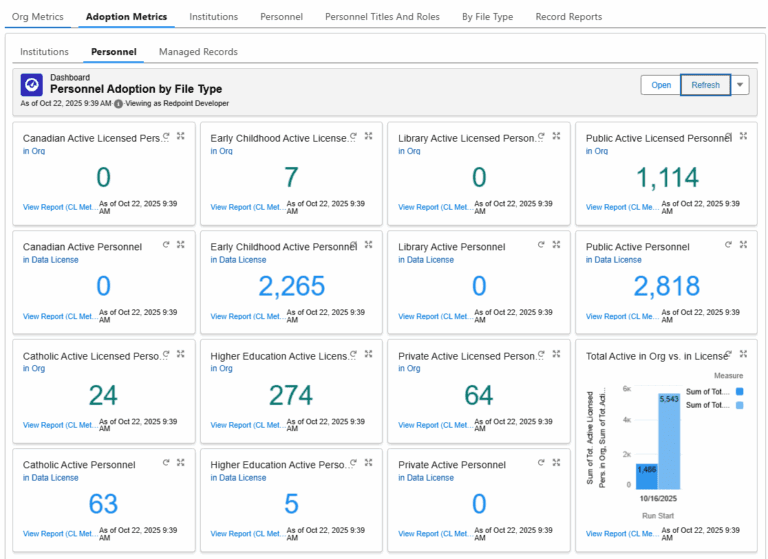
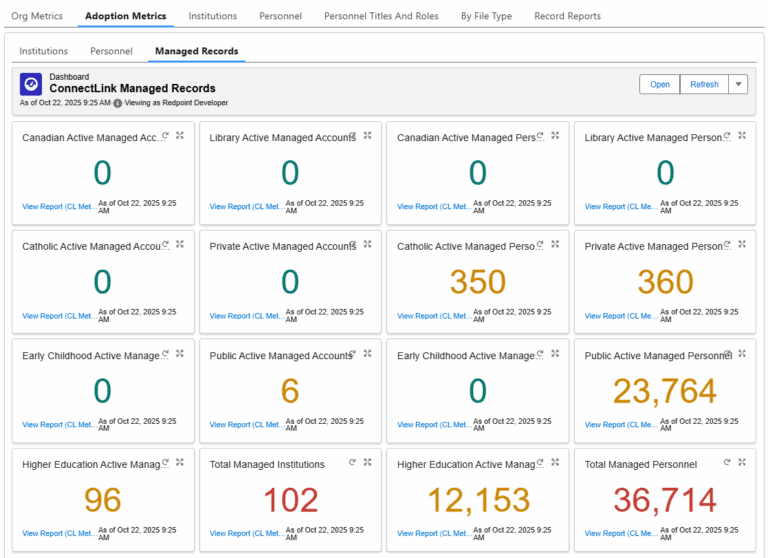
  • New Adoption Metrics Dashboard: The components display per-file-type information for org vs licensed records. A tab displaying managed record counts has also been included.
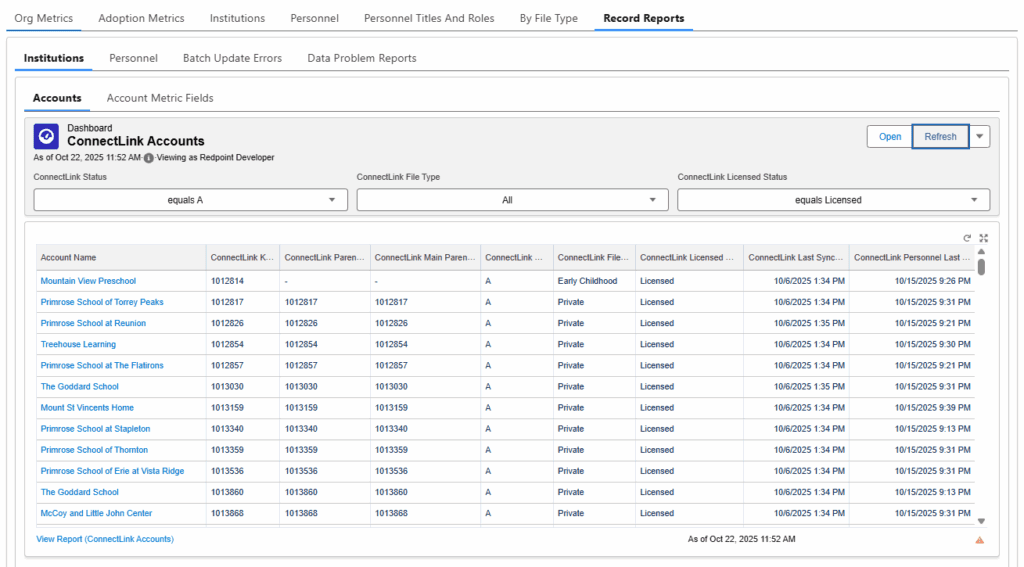
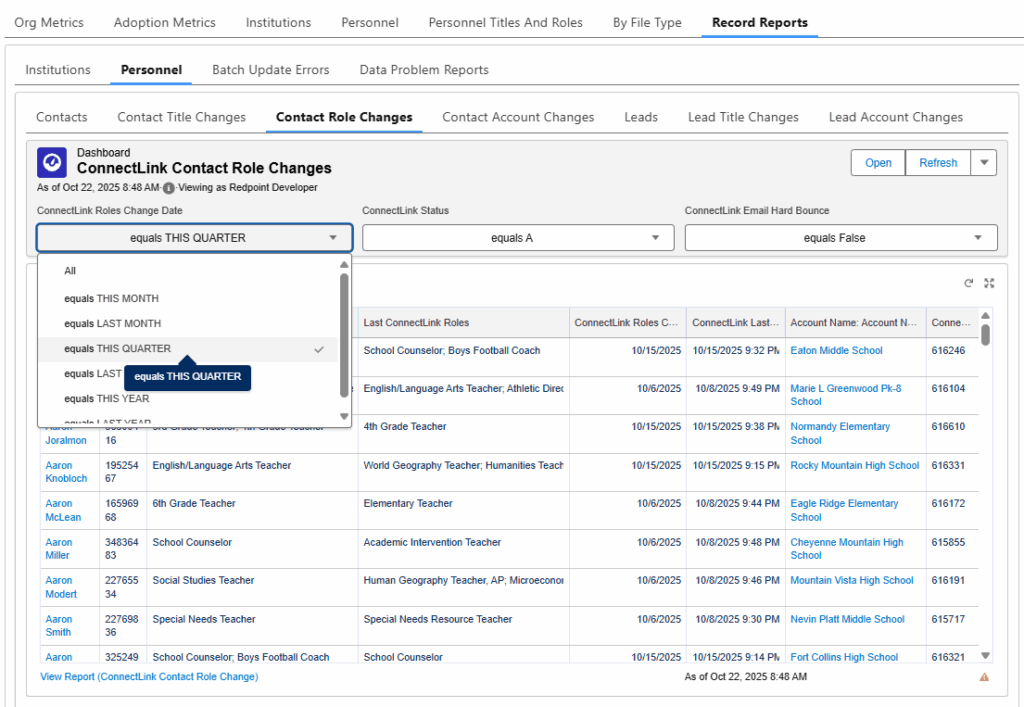
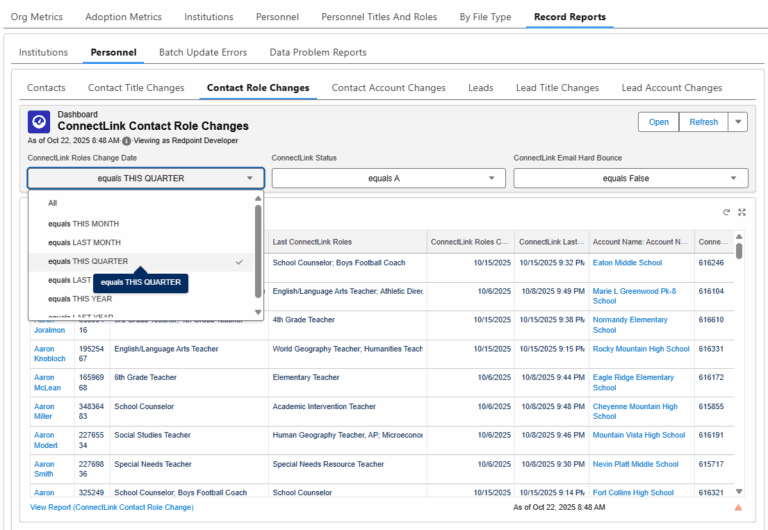
  • New Record Reports Dashboard: These Dashboards display samples of comprehensive reports that can be accessed through links at the bottom of the table. Most Record Report dashboards don’t need a dashboard update job run to be current; hitting refresh at the top of the dashboard will update these reports. The only exception is the Account Metric Fields dashboard, which can only be updated through the dashboard metrics job.
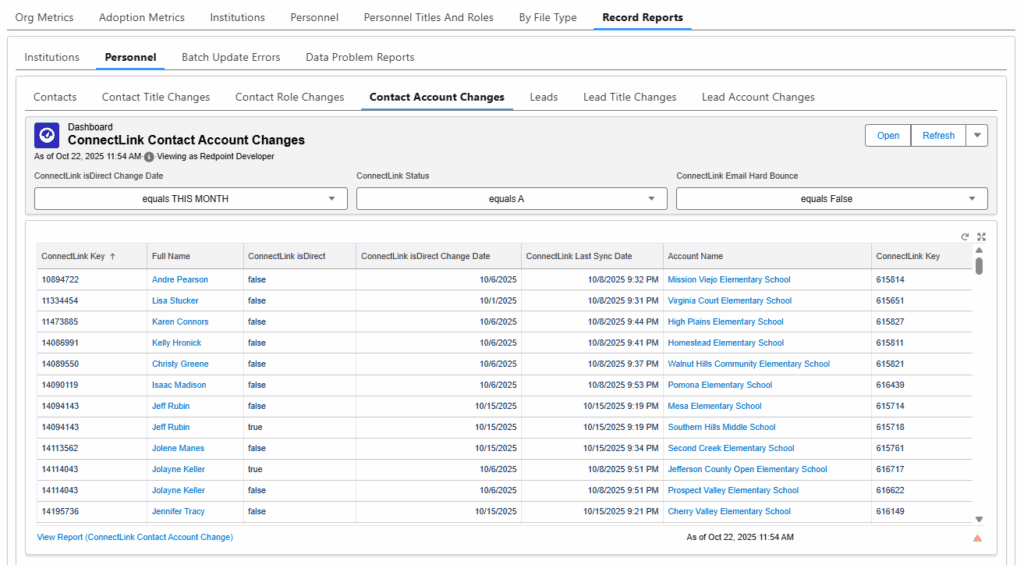
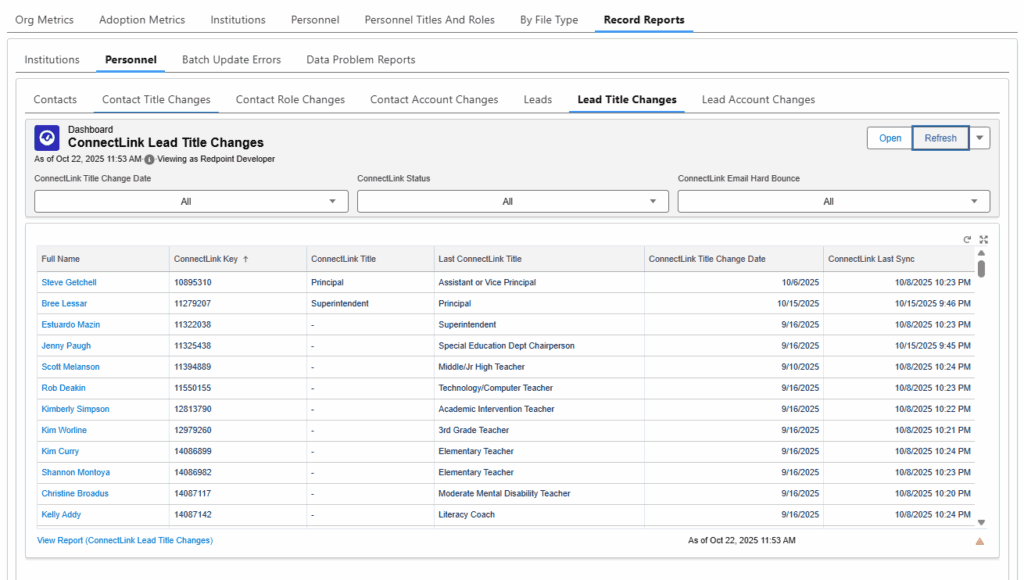
    • The Institution and Personnel dashboards are filterable, and if the full report is opened, it honors filter settings. The Personnel dashboards include new reports that allow you to track personnel title and account changes, and filter by time period.  
    • The Batch Update Errors Dashboard has been moved to the Record Reports section.
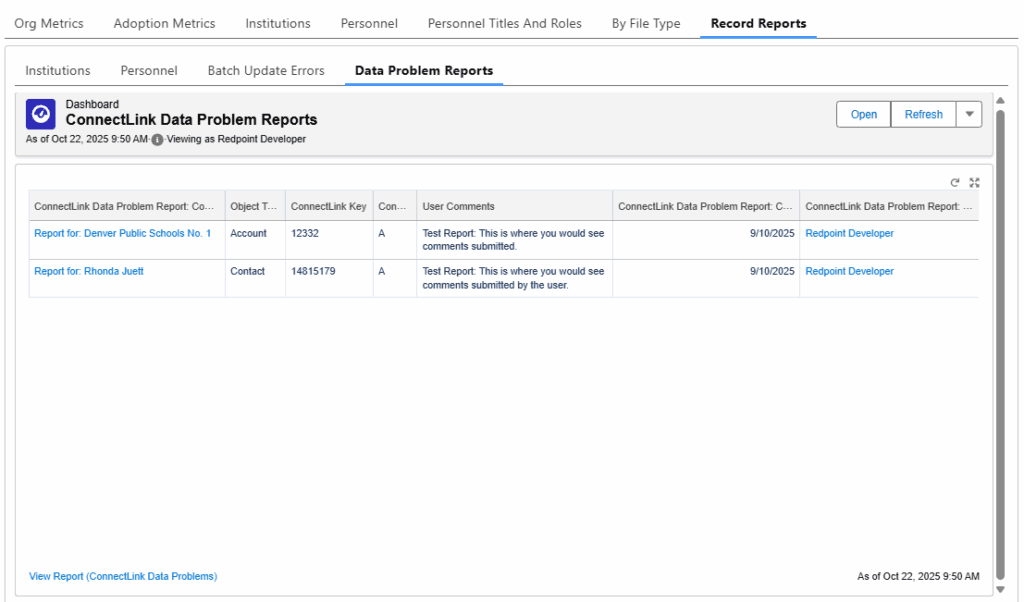
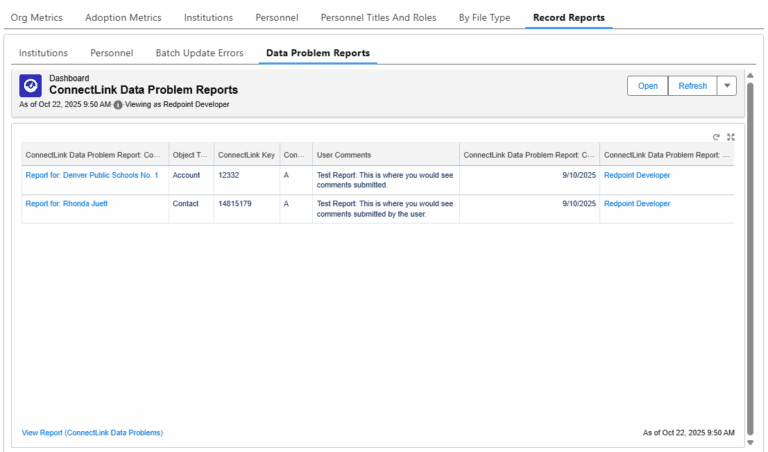
    • Discrepancies submitted using the Report a CL Data Problem button are now recorded. The Data Problems Reports Dashboard displays a filterable list of historic reports.

⚠️ CAUTION: Although these dashboards and reports can be used to make custom reports,  never update the existing reports. Always save a copy and make changes to the copy. Any edits to the existing reports will cause issues for all users.

Field Mapping Preference Updates

Changes have been made to the Prefer menu options for mapped fields. See our Field Mapping documentation for complete details.

  • New Agile Ed Null Overwrite preference
    • Like the original Agile Ed preference, the new preference will overwrite existing data with Agile data. Unlike the original preference, it will also empty the Salesforce field if the Agile data is null.
    • Note: The integration will not null or update mapped fields for closed, inactive, or unlicensed records. The only exception is for mapped email address fields. In our database, we remove the email addresses of all inactive personnel to prevent accidental damage to your sender reputation. If Agile Ed Null Overwrite is selected for a mapped email address, the field will be emptied for inactive personnel.
  • Retired the Choose Agile Ed and Choose Salesforce preferences
    • There was no longer a functional difference between Agile Ed and Choose Agile Ed or between Salesforce and Choose Salesforce.
    • Existing fields mapped with a Choose preference will continue to function as before. No change is required.
    • When editing or adding new field mappings, the Choose preferences will not be available.

Completed District Sync Functionality

Bulk Updates can now be set up to roll up personnel to their corresponding district. For details regarding this functionality, contact your account manager or ConnectLink support. Please note that this setting can only be enabled by our support team.

Bug Fixes and Minor Enhancements

Several bug fixes and minor enhancements have also been implemented, including:

  • Metric field protection is now exceptionless. It silently reverts upserts not carried out by ConnectLink. This allows seamless lead conversion, backup, archive/unarchive, and sync technology integration.
  • Account Matching returns an informative message instead of an Exception when no Accounts are found and territories are not set.
Screenshot of a ConnectLink Dashboard, showing Org Metrics for Institutions
Updated Institution Org Metrics Dashboard
Screenshot of a ConnectLink Dashboard, showing the new Personnel Adoption Metrics report
New Personnel Adoption Metrics Dashboard
Screenshot of a ConnectLink Dashboard, showing the new Managed Record Report found under Adoption Metrics
New Managed Records Dashboard, found under Adoption Metrics
Screenshot of a ConnectLink Dashboard, showing the new Contact Role Changes Report found under Record Reports
New Contact Role Changes Dashboard, found under Record Reports
Screenshot of a ConnectLink Dashboard, showing the new Data Problem Report found under Record Reports
New Data Problem Report Dashboard, found under Record Reports

Upgrade Instructions

  1. Upgrade to the New Version
  2. Configure Permissions – see the Permission Set FAQ for details
    • If you previously installed for all users, revoke previous permissions.
    • Create new permission set groups.
    • Assign permissions to users and admins.
  3. Optional: Import Missing Institutions
    • If you haven’t imported missing institutions recently, consider doing so now. We recommend doing this every 1-3 months, since new educators are not created during syncs unless the account exists (unless you have orphaned leads enabled). 
    • You can do this from the ConnectLink Setup tab > Actions Menu > Import All Missing Institutions. If you’d like to review the records before importing, use the New Institutions tab. 
    • Wait for the job to finish before starting the Bulk Update All.
  4. Run a Bulk Update All (all records)
    • Go to the ConnectLink Setup tab and click Bulk Update All from the Updates Menu.
    • This will populate the new fields created during the upgrade.
  5. Update the Dashboards
    • Go to the ConnectLink Setup tab and click Update Dashboards from the Updates Menu.
    • Until the dashboard update is complete, some newly added dashboards and/or reports may not have data.

If you haven’t already, schedule weekly Bulk Updates and Dashboard Updates, so your data and dashboards stay current during this busy time of year.  

Permission Sets FAQ

Permission sets are collections of settings and permissions that grant users additional access beyond their profiles, allowing for flexible and granular access control.

Current Salesforce security standards for managed packages require that included components comply with the Platform Sharing Architecture. This means most code must now honor your organization’s sharing rules. Exceptions where the model could not be fully applied were documented and approved during the AppExchange Security Review. ConnectLink passed its latest review on 8/30/2025. 

Access to the package’s fields and functionality is granted through permission sets.

To comply with Salesforce security standards, we recommend installing ConnectLink for admins only and using permission sets to grant access to users or profiles that will use the app.

System Administrators do not need permission sets to use ConnectLink, as they already have the highest level of access.

If you opt to install for all users instead, only certain portions of this FAQ will apply.

Yes, unfortunately, managed package upgrades don’t revert previously granted permissions. Additional steps are required if you previously installed for all users and are now installing for admins only.

The privileges you’ll want to revoke are the ones granted by the ConnectLink Admin Permission Set. The sections that contain privileges granted are: Assigned Apps, Object Settings, Apex Class Access, Visualforce Page Access, and Custom Settings Definitions. Once this process has been completed, appropriate privileges can be granted (continue reading for further details).

NOTE: Simply granting the ConnectLink User Permission Set to users or profiles will not revoke any existing privileges.

ConnectLink provides two permission sets:

  • ConnectLink Admin
  • ConnectLink User

The ConnectLink Admin permission set grants access to all package components. Salesforce managed packages cannot grant access to components outside their scope.

Additional permissions may be required to:

  • View package dashboards and reports
  • Fully use the ConnectLink Setup tab

The ConnectLink User permission set provides access to all package fields in the agileed namespace.

It also allows the use of the following buttons:

  • ConnectLink Sync
  • ConnectLink Account/Contact/Lead Matching
  • Report CL Data Problem

Additional field access may be required to perform ConnectLink Sync and Report Data Problem operations correctly.

Non-System Administrator users will likely need additional permissions for full functionality. Below are the recommended permissions; however, depending on your organization’s policies, granting all of them may not be possible or desirable.

ConnectLink Users

  • Write access to all fields mapped in the ConnectLink Setup tab
    • Required for the ConnectLink Sync and Report CL Data Problem buttons to work correctly.

ConnectLink Admins

  • Write access to all fields mapped in the ConnectLink Setup tab.
    • Required for the ConnectLink Sync and Report CL Data Problem buttons to work correctly.
  • View Dashboards in Public Folders
    • ⚠️ Warning: This grants access to all dashboards in Public Folders.
    • Grant View Access only.
    • For more restricted access, share only the ConnectLink Dashboards folder with specific Users, Roles (and Subordinates), or Public Groups.
  • View Reports in Public Folders
    • ⚠️ Warning: This grants access to all reports in Public Folders.
    • Grant View Access only.
    • For more restricted access, share only the ConnectLink Metrics and ConnectLink Records folders. 
  • Customize Application

Follow these steps to grant permissions safely and efficiently:

  1. Create a permission set called ConnectLink Fields, and add Write Access to all fields mapped in the ConnectLink Setup tab.
  2. Create two permission set groups:
    • ConnectLink_Admin_Local
    • ConnectLink_User_Local
  3. Add the following permission sets to each group:
    • ConnectLink_User_Local → ConnectLink User + ConnectLink Fields
    • ConnectLink_Admin_Local → ConnectLink Admin + ConnectLink Fields
  4. Either (choose one of the following):
    1. Create a permission set called ConnectLink Admin Extra, and add:
      • View Dashboards in Public Folders
      • View Reports in Public Folders
      • Customize Application – ⚠️ Important: This grants extensive permissions. See the previous question: Do I need additional permissions that ConnectLink does not provide?
      • Add ConnectLink Admin Extra to the ConnectLink_Admin_Local group.
    2. Or create a public group and add the users who have the ConnectLink_Admin_Local permission set, and grant them access to:
      • The ConnectLink Dashboards dashboard folder
      • The ConnectLink Metrics and ConnectLink Records report folders

No. The subscriber cannot customize permission sets that belong to a managed package.

During ConnectLink upgrades, permissions included in the ConnectLink Admin and/or ConnectLink User permission sets may be added, modified, or removed.

Generally, new privileges are added only when required for new functionality.

Fields and Components

Several new fields and other components are included with this upgrade. These should not count toward edition custom field limits. See the Salesforce documentation for more information.

New Custom Fields for Standard Objects

Parent ObjectCustom Field NameComments
AccountConnectLink Creation MethodCustom field to register creation method for Created by ConnectLink records.
AccountSchool Year EndIncluded in the Contacts with Related Accounts Report Type.
Account Contact RelationshipConnectLink Roles Change DateEnables date field change reporting.
Account Contact RelationshipLocationIncluded in the Contacts with Related Accounts Report Type
Account Contact RelationshipConnectLink isDirect Change DateEnables date field change reporting.
ContactConnectLink Creation MethodCustom field to register creation method for Created by ConnectLink records.
ContactLast ConnectLink AccountIdEnables Previous Account displaying on the Account Change report.
ContactConnectLink AccountId Change DateEnables date field change reporting.
ContactConnectLink Title Change DateEnables date field change reporting.
LeadConnectLink Creation MethodCustom field to register creation method for Created by ConnectLink records.
LeadConnectLink Title Change DateEnables date field change reporting.
LeadConnectLink Account Change DateEnables date field change reporting.

Reports and Dashboards 

  • 3 custom report types
  • 15 dashboards
  • 16 reports
  • 1 report folder

Other

  • 11 apex classes
  • 1 global value set
  • 1 static resource

For more details, contact ConnectLink Support.

Speak with a Consultant     |     866.782.0241 x 108     |     [email protected]

education expertise matters

Consultation
Request

We use cookies to ensure you get the best experience on our website.  Learn more.

Optimize Your Digital Marketing

Let's Get Started

Optimize Your Digital Marketing

Let's Get Started

education expertise matters

Let's Connect

We’re here ready to answer your questions! Share a little information with us below and one of our Agile experts will be in touch shortly.

Making Data Useful Daily

Let's Get Started

See Agile Integrations in Action

Connect to
Learn More

Plug Into the Education Market

Get Started

education expertise matters

Consultation
Request

education expertise matters

Consultation
Request

education expertise matters

Consultation
Request

education expertise matters

Consultation
Request