
Installation Instructions

Navigation Menu

Preparation and Planning

Prerequisites: None
Estimated Time: 1 hour

Topics:

  • Introductions
  • Discuss other integrations that the integration may impact
  • Decide if you’ll start by installing and testing in the sandbox or in production
  • Discuss desired settings
    • Will the integration manage account and contact hierarchies?
    • Will you enrich leads with Agile data?
    • How will new personnel be created? As contacts? As leads? Hybrid approach? 
  • Create onboarding timeline
    • Do key team members have scheduled PTO in this time frame? 
    • Is there anything else we need to work around? Holidays?
  • Determine the responsible party for each major onboarding task
    • Submit data match
    • Provide duplicate criteria
    • Finalize data dictionary field selection
    • Field mapping and layout decisions
    • Application install and configuration
    • Testing and first sync
    • End user announcement and/or training
  • Q&A
  • Schedule recurring onboarding calls

Prerequisites: None. Start as soon as possible.
Estimated Time: Less than an hour of active work. It will take additional time for Salesforce to export your files and for AgileInsight to complete the match. 
Related Documentation: ConnectLink Match Instructions

  • Read the related documentation.
  • Pull a full export of Accounts and Contacts. If you will be using Leads with ConnectLink, export them too.
    • Important: Please do not delete or merge a large number of records after pulling the full exports. Wait until the match results have been imported. If the record no longer exists when you import the ConnectLink Keys, you will encounter errors that will cause delays. 
  • Submit the files for matching on AgileInsight.
  • Request a DBS Project once each match is complete.
  • Typically, our team requires 5-7 business days to process match results and provide load files. You’ll load these at the end of the Installation and Configuration phase. 

Prerequisites: None
Estimated Time: Between 15 minutes and several days, depending on the number of stakeholders and complexity. 
Related Documentation: ConnectLink File Match – Duplicate Criteria

  • Read the related documentation.
  • Send duplicate criteria to the onboarding team via email. 
  • We will not delete or merge duplicates in your organization. These criteria are used to assign the ConnectLink Key to a single record within a duplicate set. ConnectLink Keys can be adjusted later in Salesforce if you find you’d prefer the other record to be enriched. 
  • Don’t let duplicate criteria become a roadblock. We can provide help via email or on an onboarding call.

Prerequisites: None. Can be done concurrently with the ‘Plan Field Mappings’ step.
Estimated Time: Varies, depending on the number of stakeholders

  • Finalize field selections from the Data Dictionary.
    • Field selections can be changed at a later date. To expedite setup, you can start with the recommended fields while your team reviews the full list.
    • Recommendation: Use the text or Y/N version for most fields, to display the text version instead of the code. You may also see a proper case and an upper case version of the data. You typically only need one. 
  • Read the ‘Plan Field Mappings’ step directly after this one. If multiple stakeholders will be involved in the field selection process, it may be more efficient to combine these two steps.

Prerequisites: Finalize Field Selections, though these can be done concurrently.
Estimated Time: Varies, depending on the number of stakeholders
Related Documentation: Field Mappings

Often, the person (or team) that makes these decisions is not the admin who creates the custom fields, configures the field mappings, and adjusts page layouts. Providing clear guidance will ensure the integration functions as desired and save time during the installation phase. 

Layouts
Decide if you will update existing page layouts or create new layouts. Consider what users will see while the integration is being configured, before there’s data in your new fields. 

Make a plan for where data will go on your layouts. Will you mix the data with your existing fields, or will you create a separate section of the layout to house the Agile data? A mix of both? If you’re storing Agile email addresses or phone numbers in custom fields, we recommend placing them next to the corresponding standard fields so they are easily accessible. 

Field Mappings

Please review the related documentation on field mappings linked above. 

For each field, you’ll want to plan:

  • What field will this data go into? Will it go to an existing standard or custom field, or will a new field be created?
  • Which field mapping preference? Agile Ed, Agile Ed with Null Overwrite, or Salesforce.
  • Do you need to map this field twice? (once with an Agile preference and once with a Salesforce preference)?
  • Will the field be added to page layouts or not? If yes, which layouts?
    • Some clients map fields into Salesforce for reporting purposes or to drive automations, but don’t display them on the page. 

You can do this planning several ways. Customize as desired.

  1. After you’ve finished selecting fields in the previous step, you can request a spreadsheet from Agile that you can use as a starting point. It will contain the fields you’ve selected from the data dictionary with their data types and descriptions, along with several columns that will allow you to answer the questions above. The file will come with instructions.
  2. If you’d rather do this concurrently with the previous step:
    • Add a tab to the Data Dictionary for your selected fields.
    • For each selected field, copy the Field Description, Field Name, Data Type, and Definition. Include any other columns as desired.
    • Add several columns to store your decisions
      • New Field? (Y/N)
      • Destination Field Name
      • Mapping Preference
      • Add to layout(s)?
      • If you have multiple layouts, add a column to say which layouts you want the field on
    • If you want a field mapped twice, copy the row and change the second row as needed.

Prerequisites: Your Account Manager creates your ConnectLink Account
Estimated Time: Less than 1 minute

Your Account Manager will provide your Client ID and Client Key via email once they are available. 

Installation and Configuration

Prerequisites: None
Estimated Time: A few minutes of active work, plus wait time while Salesforce creates relationships
Related Documentation: Set Up Contacts to Multiple Accounts

Because contacts in schools or districts often have multiple roles and can be assigned to multiple buildings, Agile has chosen to utilize the standard Related Account and Contacts object to prevent the creation of duplicate contacts.
  1. Allow contacts to be associated with multiple accounts.
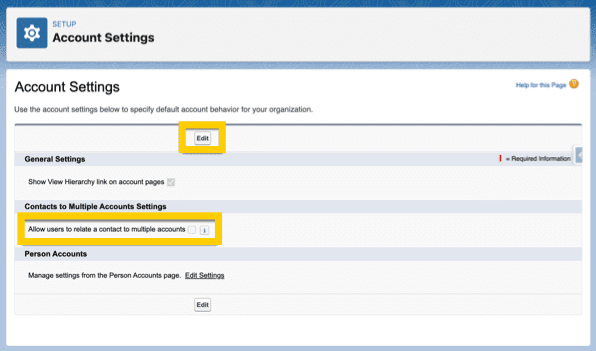
    • Before installation, you must enable the “Allow users to relate a contact to multiple accounts” setting, which is off by default. If you already have this enabled, check your roll up settings in step 2. 
    • To enable the Related Account/Contact object, go to the “Account Settings” in the setup menu. See the screenshot to the right.
    • Enabling this setting may take a while. A related list will be created for both contacts and accounts. A related contact record will be made for any contact associated with an account. The integration requires these records. They do not take additional storage space and allow educators to be associated with as many institutions as necessary. 
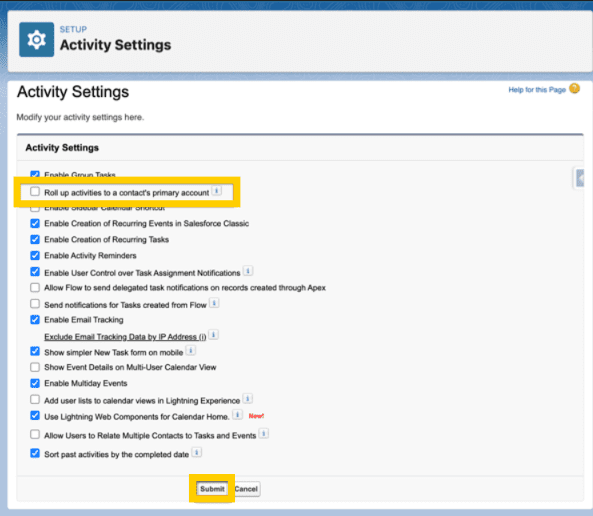
  2. Check your activity roll up settings.
  3. Update the related lists on your Account and Contact Layouts
    • Remove the Contacts related list from your Account layout and replace it with Related Contacts
    • Remove the Accounts related list and replace it with Related Accounts

Prerequisites: Related Accounts and Contacts Settings step 
Estimated Time: A few minutes

The latest version of the ConnectLink application, Version 4.8, can be downloaded by clicking on the link below. Please install for Admins Only.

Prerequisites: Install the App, Get App Credentials
Estimated Time: A few minutes
Related Documentation: Leads

These configurations will not make changes in your organization, unless you or another user deliberately takes further action. 
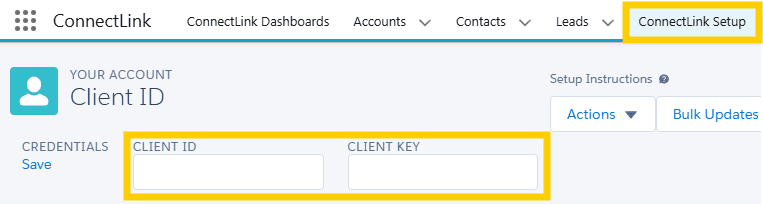
  1. In Salesforce, use the app finder to navigate to the ConnectLink application. Go to the ConnectLink Setup tab.
  2. In the credentials section at the top, add the Client ID and Client Key provided by your Account Manager. Click Save.
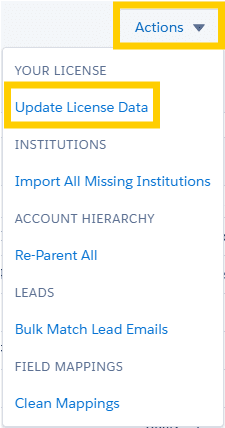
  3. In the Actions menu on the right, click Update License Data to retrieve the information associated with your account. You’ll need to do this again if you make changes to your data license or adjust the fields in your order.
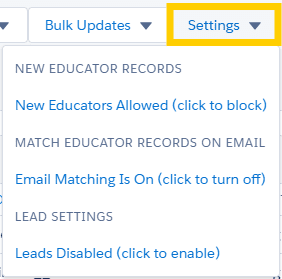
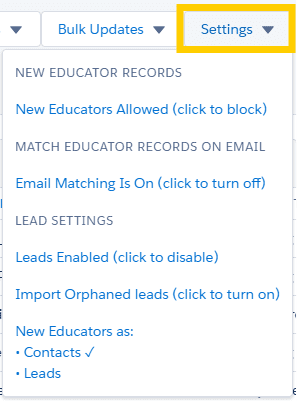
  4.  Use the Settings menu to configure your settings, which control the behavior of the integration during Batch Update jobs (also known as syncs or updates).
    • New Educator Records: Determines whether new contacts (and/or leads) are imported during syncs or if only existing contacts (and/or leads) get updated.
    • Match Educator Records on Email: Allows the application to match contact or lead records where a ConnectLink Key is not present and append the key.
      • Note: The standard contact/lead email fields must be mapped for this setting to function. The preference can be set to Salesforce.
    • Lead Settings
      • Enable Leads: Allows Leads to be enriched with Agile data during updates. If Leads are not enabled, you will not be able to see the following two options.
      • Import Orphaned Leads: Enable the integration to create new educators as Orphaned Leads during syncs if the Account does not exist. They will not be related to an Account. If the Account does exist, the educator will be imported as a related Contact or Lead, depending on your selection for the next setting.
      • Import New Educators as: Determine whether the app imports new educators as Leads or Contacts.
      • Refer to our Lead documentation for more information.
  5. By default, the integration will manage your Account and Contact hierarchies, using the standard Salesforce hierarchies. You can use the ConnectLink Do Not Update Hierarchy checkbox to disable the hierarchy for individual records. If you want to prevent the integration from managing Account or Contact hierarchies entirely, please grant support login access to Agile Education Marketing for 3 days and notify your onboarding team so that we can change the backend setting.

Prerequisites: Install the App, Get App Credentials 
Estimated Time: Approximately one hour, although the duration may vary depending on the number of new custom fields required.
Related Documentation: Field Mappings

If you completed the spreadsheet during the Plan Field Mappings stage, this will be easier. 

Please read the Field Mappings documentation before you start. The integration created several fields that will be updated automatically during syncs. These don’t need to be mapped.
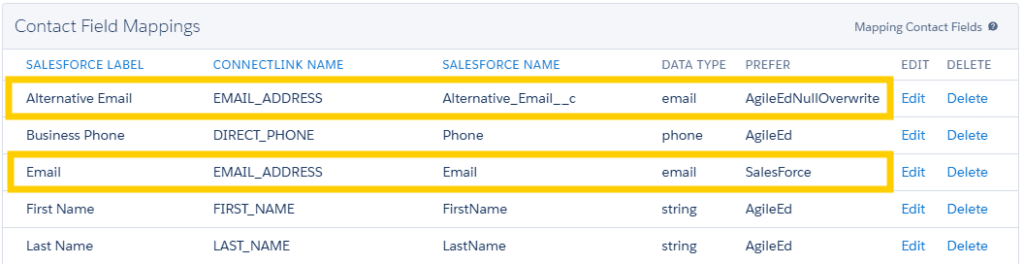
  1. Create any new custom fields needed. Ensure that you are using the correct data type to prevent errors.
    • If you typically use field-level security, read ahead to the ‘Get Permission Sets Ready’ step. We recommend write access for all mapped fields so users can use the ConnectLink Sync and Report CL Data Problem buttons.
  2. On the ConnectLink setup tab, add mappings for your selected fields and designate the preference.
    • Note: You can map a single Agile field to multiple Salesforce fields. Typically, one will have an Agile preference, and the other will prefer Salesforce. 

Prerequisites: Install the App, Create Custom Fields
Estimated Time: Varies, approximately an hour

Instructions

For each Account, Contact, and Lead layout, repeat these four steps. If you aren’t using Leads with ConnectLink, ignore references to leads.

Some clients choose to group most ConnectLink data in its own layout section, especially when there are many mapped fields. This makes it easy to find. If you’ve mapped contact information (such as phone, email, and address) into custom fields instead of standard fields, or if you have two sets of mappings, these fields may be best displayed next to their corresponding standard fields so that users can see both options. 

1) Add Lightning Actions

These three lightning actions should be added for accounts, contacts, and leads. If you installed for Admins only, users shouldn’t have access to these buttons yet. Once you grant them permissions, these buttons can be used to update records. If you’re concerned about accidental updates and working on live layouts, you may want to wait to add these until testing is complete.

  1. ConnectLink Sync
  2. ConnectLink Account/Contact/Lead Matching
  3. Report CL Data Problem

2) Add Integration Created Fields

Prominently display the ConnectLink Status field, allowing users to easily determine if an account is active or closed, or if a contact/lead is active or inactive. 

Field NameAccountsContactsLeads
ConnectLink Key✅✅✅
ConnectLink Parent Key✅  
ConnectLink Main Parent Key✅  
ConnectLink Last Sync Date✅✅✅
ConnectLink Status✅✅✅
ConnectLink Licensed Status✅✅✅
Created by ConnectLink✅✅✅
ConnectLink File Type✅  
ConnectLink Do Not Update✅✅✅
ConnectLink Do Not Update Hierarchy✅✅✅
ConnectLink Email Hard Bounce ✅✅
ConnectLink Title ✅✅
ConnectLink Job Category ✅✅
Account (Lookup Field)  ✅

3) Add or Update Related Lists and Update List Properties

ObjectRelated ListRecommended FieldsNotes
AccountsRelated ContactsConnectLink Status, ConnectLink Roles, ConnectLink Inactive Roles, and ConnectLink Email Hard BounceRemove the Contacts related list to prevent confusion.
AccountsLeadsConnectLink Status, ConnectLink Title, ConnectLink Email Hard BounceConnectLink created this list during installation to display ConnectLink-related leads.
ContactsRelated AccountsDirect, ConnectLink Roles, ConnectLink Inactive Roles, and ConnectLink StatusRemove the Accounts related list to prevent confusion.
LeadsNoneN/AThere are no related lists to add to leads. Instead, add the Account lookup field created by the integration. 

4) Add Mapped Fields

Add your mapped fields to the appropriate layouts, unless the field was identified during the planning phase as a reporting-only field. 

Prerequisites: Install the App
Estimated Time: Varies, approximately an hour
Related Documentation: Permission Sets FAQ

Refer to the Permission Sets FAQ for comprehensive details. Pay close attention to these two questions:

  • Do I need additional permissions that ConnectLink does not provide?
  • What is the best practice to grant additional permissions?

Your organization’s security policies will determine which additional permissions to grant to users.

After reading through the documentation, create new permission set groups. 

Important: Wait to assign user permissions until after testing, so users don’t accidentally make changes before your integration has been fully configured.

Prerequisites: Install the App
Estimated Time: 15-30 minutes

After your data match is complete, Agile will provide files to load into Salesforce that attach ConnectLink Keys to matched records. You will have one or two load files per object. These can be combined or divided as needed.

The files will contain only the Salesforce ID and ConnectLink Key. Use the Salesforce ID as your identifier and import the ConnectLink Keys from all load files.

After ConnectLink Keys have been loaded, records with a key can be updated with the lightning button or Bulk Updates. While you can load these any time after installation, most clients opt to wait until their mappings and settings have been configured as desired.

Testing and Optimization

Prerequisites: None
Estimated Time: A few minutes

If you wish to track changes for any fields, enable field history tracking in the Salesforce setup menu. 


Prerequisites: Install the App, Load ConnectLink Keys to Existing Records
Estimated Time: A few minutes of active work, plus Salesforce processing time

Before proceeding with the testing steps below, consider creating a backup of Salesforce data. Many clients find the files pulled for the match to be sufficient; however, it can be beneficial to have a backup that includes the ConnectLink Keys. 

Prerequisites: Install the App
Estimated Time: A few minutes

Salesforce duplicate prevention rules can prevent ConnectLink from creating or updating records. The standard duplicate rules don’t always work for the education industry, and custom rules can also cause issues. If you have duplicate rules that prevent records from being created or edited, consider modifying them or creating new custom rules. This is especially important for accounts, because most ConnectLink configurations will only insert new personnel if the associated account exists.

Option 1: Modify existing account duplicate rules

This is the simplest option. You only need to modify active duplicate rules that block record creation or edits.

Leave the original settings and matching rule, but add a new condition with the values below. This will allow the duplicate rule to run for any records without a ConnectLink Key. Records with a ConnectLink Key will ignore the rule.

  • Field: ConnectLink Key
  • Operator: Equals
  • Value: (leave blank)

Option 2: Replace existing rules with new ones

Documentation for this is coming soon. In the meantime, contact the onboarding team for guidance.

Prerequisites: Install the App
Estimated Time: Varies

We often see clients add or adjust automation in the following categories. 

Source
Any records created by the integration will have the Created by ConnectLink checkbox checked (true). If you track source in other fields, you can use this checkbox to drive automation.

Record Ownership, Territory Assignment, Etc.
By default, records created by the integration will be owned by the user who scheduled the update job, initiated it from the Bulk Updates menu, or imported the missing institutions. We often see automations to update ownership, assign reps, etc. 

Status Fields
Many clients use the ConnectLink Status field to update custom status fields. 

Account Type Fields
You can use automation and ConnectLink data to designate the Salesforce record type or populate custom type fields. Common fields that may help:

  • Record Type Text
  • File Type Text
  • Building Charter Text or District Charter Text
  • Grade Level Text or Detailed Grade Level Text
  • District Type Text
  • Many more type fields are in our data dictionary

Prerequisites: All Installation and Configuration steps, any optional Testing and Optimization steps desired
Estimated Time: Around 15-30 minutes

After you’ve finished configuration and loaded ConnectLink Keys, you are ready to test syncing a few individual records. 

  1. If the ConnectLink Sync button is not available on your page layouts, make it available now for Accounts, Contacts, and Leads (if using). 
  2. Sync a single account
    • Navigate to an account with a ConnectLink Key and use the ConnectLink Sync button. 
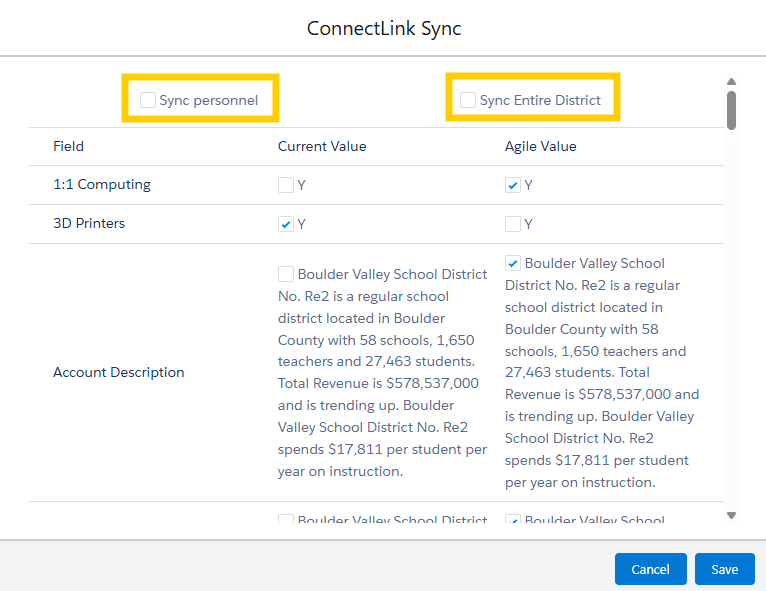
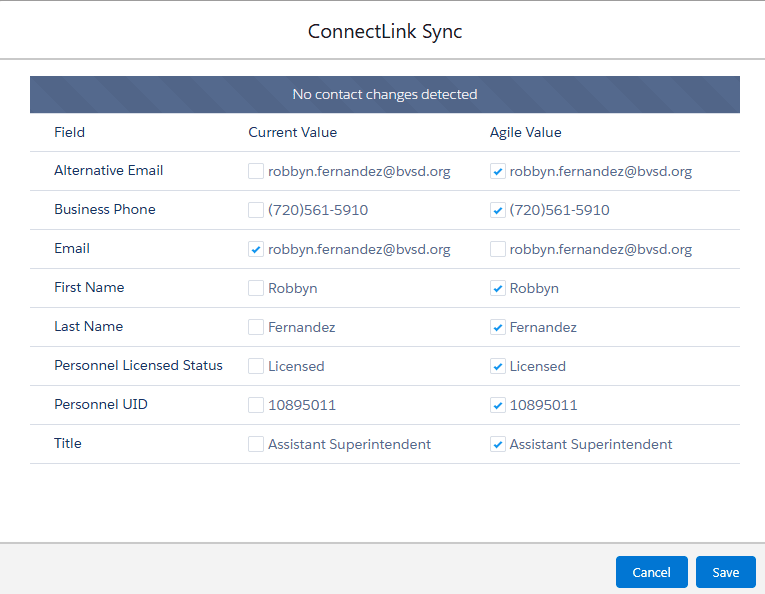
    • A preview will appear, with a checkbox beside the value that will be populated after the update, based on your field mapping preferences. Click Okay to sync the record. 
    • After the record syncs, the ConnectLink Last Sync date will be updated, and the mapped fields should be populated. If there are no issues, proceed to the next step.
    • If you encounter an error, read the message and troubleshoot the issue.
      • If you don’t see an error but the data didn’t update, or if you need more details, refer to the Batch Update Errors tab at the top of the page. Tip: Change from Recently Viewed to All if you don’t see any errors.
      • Proceed to the next step once errors have been resolved.
  3. Sync an account, related personnel, and the entire district
    • Navigate to a different account record with a ConnectLink Key, preferably one that’s a district.
    • Open the Related Contacts list in a new tab, so you can see what changes. 
    • On the account record, click the ConnectLink Sync button
    • In the box that appears, check the two boxes at the top of the page: Sync Personnel and Sync Entire District. Click Okay.
    • This should sync the selected account, all other accounts in the same district, and the related personnel. Look at the Related Contacts view and compare with the other tab to see what has changed. You should see ConnectLink Roles and ConnectLink Statuses populate for contacts with a ConnectLink Key.
    • Check the Batch Update Errors tab for errors. Troubleshoot if needed. 
  4. Sync a single contact
    • If you didn’t notice any contacts update during the previous step, navigate to a contact with a ConnectLink Key
    • Use the ConnectLink Sync button and click okay.
    • The record should update. If not, troubleshoot as needed.
  5. Sync a single lead
    • Find a lead with a ConnectLink Key
    • Use the ConnectLink Sync button and click Okay to sync the record.
    • It should update. Troubleshoot as needed if there are errors. 
  6. Once you can sync records without errors, you have completed the necessary testing. If you created automations, now is a good time to see how they are working.
  7. It’s pretty unlikely that users could create issues at this stage, but feel free to remove the ConnectLink Sync buttons from page layouts until you are ready for the full rollout. 

Prerequisites: All Installation and Configuration steps, any optional Testing and Optimization steps desired
Estimated Time: Approximately 30 minutes

Before you start syncing data, we recommend a check-in call with your onboarding team. We’ll review your settings, mappings, and page layouts. We may sync a few individual records and review error logs. We’ll also answer any remaining questions before you start syncing data.

Initial Data Sync

Prerequisites: All Installation and Configuration steps and Testing and Optimization steps 
Estimated Time: Less than 15 minutes of active work, plus the time it takes to import the institutions

New personnel will not be created if the account does not exist, unless you have enabled orphaned leads. Because of this, we recommend importing all institutions in your data license. 

After your data match, we provided an estimated count of missing accounts and a breakdown by record and file type.

The job can take a few hours, depending on the number of accounts that are imported. The integration does this in small batches, so performance should not be impacted.

To import missing institutions:

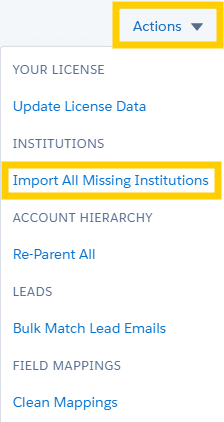
  1. Navigate to the ConnectLink Setup tab
  2. In the Actions menu, choose Import All Missing Institutions
  3. You can monitor progress in Apex jobs
  4. You will receive an email once the import is complete
  5. Check the Batch Update Errors tab to make sure there weren’t any errors
    • Troubleshoot if necessary
    • Depending on the number of records skipped, you may decide to move on to the next step before fully resolving these issues
    • Contact your onboarding team if you need assistance

Note: If you would like to review a flat file of the records that will be created before starting the import, please notify your onboarding team. 
Prerequisites: Testing and Optimization steps, Import Missing Institutions 
Estimated Time: Approximately 15-30 minutes of active work, plus the time for the jobs to run
Related Documentation: ConnectLink Dashboards

Congratulations, you’re ready for your first Bulk Update All. This will force update every record with a ConnectLink Key in enabled objects and import new personnel according to your configurations. After the Bulk Update All has finished, you’ll update the ConnectLink Dashboards to populate the data.

Run a Bulk Update All

  1. Navigate to the ConnectLink Setup tab
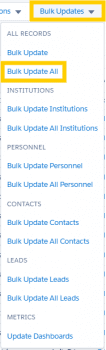
  2. In the Bulk Updates menu, click Bulk Update All
  3. This will kick off the several batch processes. You’ll get an email after each step of the update is complete. It can take upward of 24 hours for the first Bulk Update All to run, depending on how many records you have. You can monitor progress in Apex jobs or the new batch jobs page.
  4. You can also create reports to monitor progress
    • Group by Row: ConnectLink Last Sync Date
    • Group by Column: Created by ConnectLink
    • Turn the detail rows off at the bottom of the report, so you only get totals.
    • Filters: All accounts, all time, ConnectLink Key is not blank
  5. Once all the batch jobs have finished, review any errors

Update the Dashboards

  1. Make sure the Bulk Update All is finished
  2. Navigate to the ConnectLink Setup tab
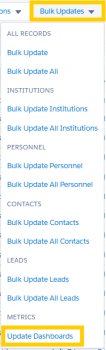
  3. In the Bulk Updates menu, click Update Dashboards at the bottom of the list
  4. Once the job is finished, you can refresh the dashboards and there should be data available
    • Note: Some dashboards and reports will always be up to date, even without the Dashboard Update. See our dashboard documentation for more details. 

Prerequisites: Get Permission Sets Ready, Complete all desired Testing and Optimization steps
Estimated Time: Less than an Hour
Related Documentation: Permission Sets FAQ

After you’ve imported missing institutions and completed the first Bulk Update All, your licensed data should be ready to go in Salesforce. Now, you’ll ensure users can see and interact with the data. Customize as needed for your organization. 

Goals:

  • Users and admins have the correct permission sets assigned.
  • ConnectLink data is visible on Account, Contact, and Lead page layouts, including:
    • All three lightning actions
    • Integration created fields
    • Related lists
    • Mapped fields
  • Users and admins have access to other ConnectLink components as needed for their roles.

Full Rollout

Prerequisites: Successful Bulk Update All
Estimated Time: 5 minutes
Related Documentation: Scheduling Bulk Updates

It’s important to schedule recurring jobs to ensure the integration keeps your records up to date and imports new personnel. Our database is refreshed each weekend. 

For most configurations, we recommend scheduling two weekly jobs to stay on top of changes as they occur.

  1. A weekly BatchUpdateObjects job. This is equivalent to a Bulk Update initiated from the ConnectLink Setup tab. 
  2. A weekly ScheduleableMetrics job, 1-2 days after the first job. This is the equivalent of a Dashboard Update initiated from the ConnectLink Setup tab.

The Scheduling Bulk Updates document walks you through the steps. It provides information about the best times to schedule updates and times to avoid due to database maintenance. 

Prerequisites: Successful Bulk Update All, Grant Permissions to Users, and Expose new data
Estimated Time: Varies
Related Documentation: End User Guide

Coming soon

Prerequisites: Tasks through the Initial Data Sync phase, Schedule Recurring Updates
Estimated Time: less than 2 minutes to grant login access, around five business days for the Agile team to complete the audit

At the end of your onboarding, we’ll conduct a ConnectLink Audit. We’ll review your settings, field mappings, scheduled jobs, page layouts, and other relevant configurations, and compare them to our best practices. We’ll provide a document outlining our findings and any recommended actions. This will serve as a final to-do list and document your settings.

We’ll review:

  • Dashboards
  • Batch Update Errors
  • ConnectLink Setup tab: Settings and Field Mappings
  • Page layouts
  • Scheduled jobs
  • Custom Settings for the integration
  • Various statuses and counts for records with a ConnectLink Key

To get started, grant support login access to Agile Education Marketing. Usually, a week is enough time for us to complete the audit. During your next onboarding call, we will discuss our findings and provide a PDF of the document for your records.

Assuming you have scheduled regular updates, the integration should perform most tasks automatically. Here’s our suggested schedule for ongoing maintenance.

Weekly: 

  • Schedule bulk updates to run weekly.
  • Schedule weekly dashboard metric updates 1-2 days after the bulk update is completed. 
  • Check for Batch Update Errors after updates.

Periodically (1-3 months):   

  • Import Missing Institutions: For most integration configurations, personnel will not be created if there’s no account to associate them with. The integration doesn’t create accounts during scheduled jobs. There are three ways to import institutions, though the Search tab isn’t the best for bulk imports.
    • Import All Missing Institutions from the Actions menu in the ConnectLink Setup Tab: This will bring in every institution in your data license where the ConnectLink Key does not exist in Salesforce.
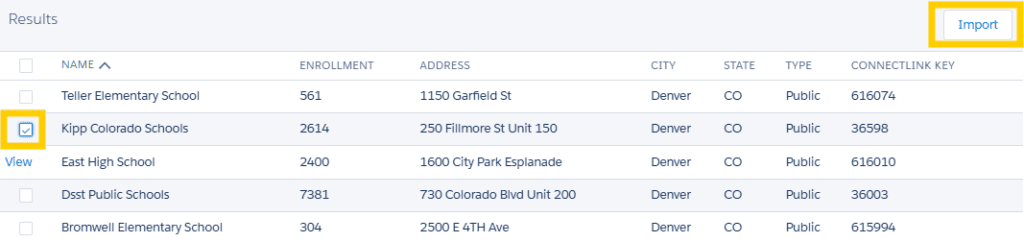
    • New Institutions tab: You input the last import date. It pulls a list of institutions created since that date. Select individual institutions or import all of them.
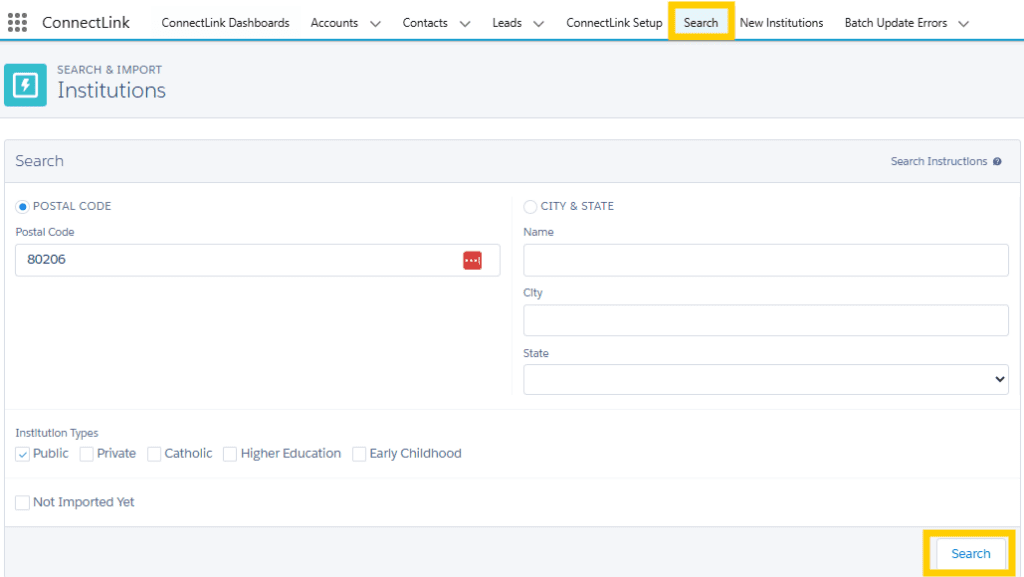
    • Search tab: Use this if you’re searching for a specific institution or within a particular city or postal code.
  • Run a Bulk Update All: This forces an update for all records with a ConnectLink Key. Regularly scheduled Bulk Updates only update records that have recently changed in our database. You should also run a Bulk Update All when importing missing institutions or adding new field mappings.
  • Review Dashboards: There are several key points to verify.
    • Look at the counts of closed institutions and inactive personnel. Establish a process to purge inactive personnel and closed institutions that don’t have any activity, tasks, notes, opportunities, etc.
    • Check the adoption metrics for counts of missing institutions and personnel.
    • Verify the number of managed records to ensure you’re within your licensed quantity. 
    • Review the number of records marked ‘Do Not Update’ or ‘Do Not Update Hierarchy’. For most use cases, the ‘Do Not Update’ box should be used sparingly to ensure you receive critical updates. A high number of ‘Do Not Update’ records can indicate issues where the integration is overwriting data that users want to retain. Sometimes, the ‘Do Not Update Hierarchy’ box should be used instead.

Every 12-18 months:

  • Submit a ConnectLink match on AgileInsight to fill in missing ConnectLink Keys. 
  • Either internally or with a ConnectLink Agile audit, review field mappings, settings, and layouts to ensure everything remains aligned with your business needs and ConnectLink best practices. 


Speak with a Consultant     |     866.782.0241 x 108     |     [email protected]

We use cookies to ensure you get the best experience on our website.  Learn more.

Optimize Your Digital Marketing

Let's Get Started

Optimize Your Digital Marketing

Let's Get Started

education expertise matters

Let's Connect

We’re here ready to answer your questions! Share a little information with us below and one of our Agile experts will be in touch shortly.

Making Data Useful Daily

Let's Get Started

See Agile Integrations in Action

Connect to
Learn More

Plug Into the Education Market

Get Started

education expertise matters

Consultation
Request

education expertise matters

Consultation
Request

education expertise matters

Consultation
Request

education expertise matters

Consultation
Request